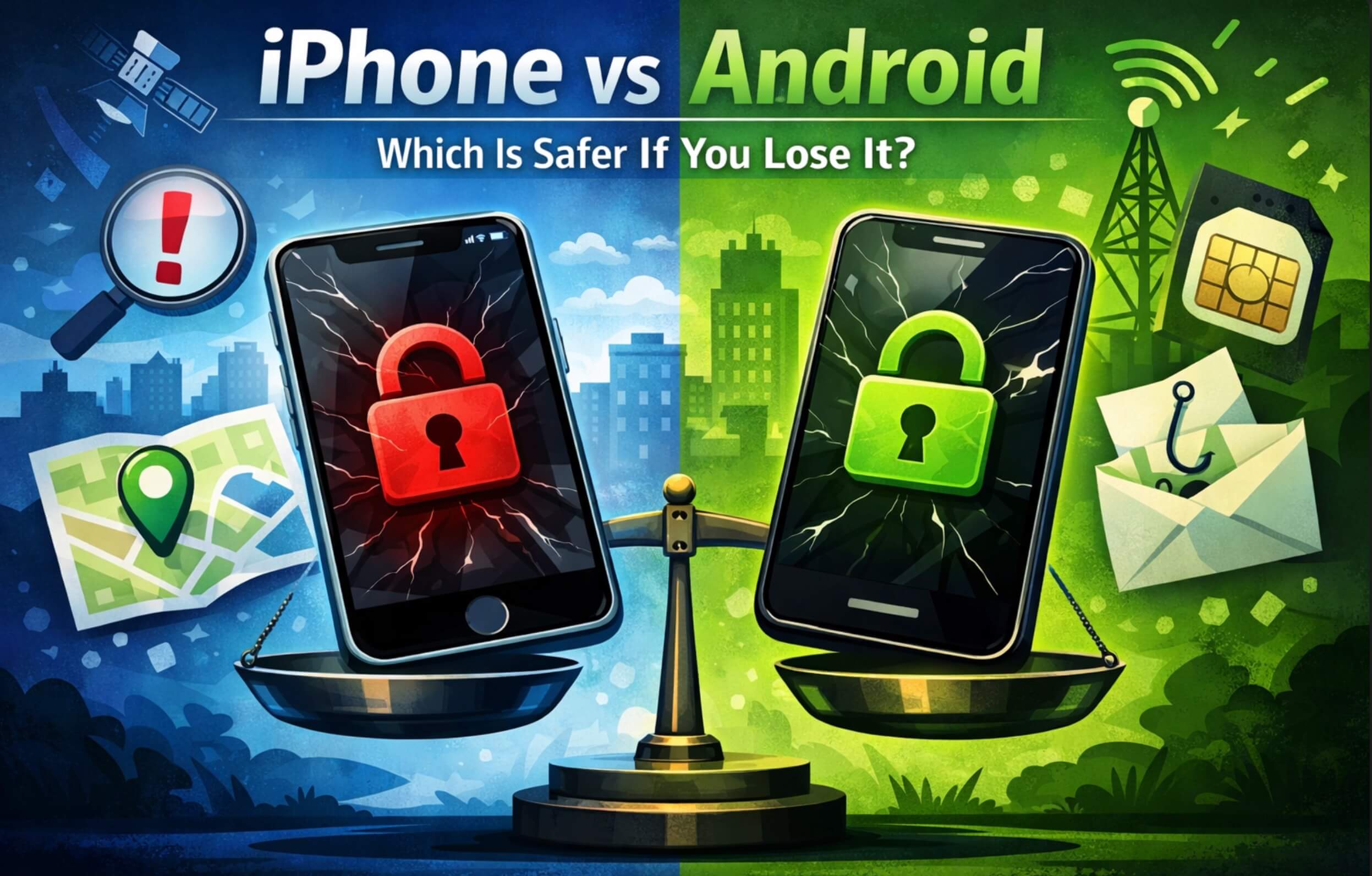
iPhone vs Android: Which Is Safer If You Lose It? (2026 Guide)
January 2026
Short answer: iPhones have a slight edge for lost-phone security in 2026—mainly because of Activation Lock and the Find My network—but both platforms can protect you well if you turn on the right settings before you lose your phone.
TL;DR
- iPhone: Find My + Activation Lock make a lost or stolen iPhone hard to use or sell; remote lock and erase are strong; offline finding via other Apple devices helps.
- Android: Find My Device + Factory Reset Protection (FRP) lock the device to your Google account; tracking and remote erase work when the phone is online; behavior varies by brand (Samsung, Pixel, etc.).
- Bottom line: Enable Find My (iPhone) or Find My Device + FRP (Android), use a strong lock screen and account security, and know your first 10 minutes after a loss. Both can be safe; prep matters more than the logo on the back.
Key Takeaways
- iPhone and Android both offer strong lost-phone protection when the right features are turned on.
- Find My (iPhone) and Find My Device (Android) let you locate, lock, and remotely erase a lost phone.
- Activation Lock (iPhone) and Factory Reset Protection (FRP) (Android) stop someone from using the device after a reset without your account.
- The biggest risk after losing a phone is account takeover (email, banking, 2FA)—secure accounts and watch for phishing text scams and SIM swap attempts.
- Remote erase wipes data but doesn't remove Activation Lock or FRP; the device stays tied to your account.
- Enable offline finding (iPhone) or ensure Find My Device is on (Android) before you lose the phone.
- If you think it was stolen, report to your carrier (for IMEI blacklist) and consider contacting law enforcement.
The Real Risks When You Lose a Phone
When you lose a phone, two things matter most: who can get at your data and who can take over your accounts.
- Data on the device: Photos, messages, apps, and saved logins. A strong lock screen (PIN, pattern, or biometrics) plus remote lock and remote erase limit what a finder or thief can see or copy.
- Account takeover: Someone uses your phone number for 2FA, or tricks you with a phishing text scam ("We found your phone—click here to sign in"). They may try a SIM swap to get your number on their SIM. Protecting your accounts (strong passwords, recovery options, carrier PIN) matters as much as protecting the device.
Both iPhone and Android can address these—if you've set things up in advance.
iPhone Security If You Lose It
Find My + Activation Lock
Find My (formerly Find My iPhone) lets you see the phone on a map, play a sound, turn on Lost Mode, or erase the device from icloud.com/find or the Find My app on another Apple device.
Activation Lock is tied to Find My: once you mark the device as lost or erase it, the phone stays locked to your Apple ID. A factory reset doesn't remove it—whoever has the phone can't activate it without your Apple ID and password. That's why stolen iPhones are often stripped for parts; they're hard to reuse as phones. For more detail, see our Activation Lock guide.
Offline Finding and Tracking
If the lost iPhone is off or has no data connection, Find My can still use the Find My network: other Apple devices nearby can detect your phone (Bluetooth) and report its location anonymously. You get a "last seen" or updated location when it's in range of any Apple device. You have to enable "Find My network" in Settings → [Your name] → Find My before you lose it.
Erase iPhone: What It Does and Doesn't Do
Erase iPhone wipes all data and removes the device from your iCloud account's "Find My" list for that device, but Activation Lock stays on as long as the device was in Lost Mode or had Find My on before erase. So the phone is clean of your data but still unusable without your Apple ID. Never remove the device from your account in Find My if it was lost or stolen—that would turn off Activation Lock.
Android Security If You Lose It
Find My Device
Find My Device (Google) lets you locate, ring, lock, and erase an Android phone from google.com/android/find or the Find My Device app. It works when the phone is on, signed into a Google account, has location on, and has internet (Wi‑Fi or cellular). If the phone is off or offline, you'll see the last known location only.
Factory Reset Protection (FRP)
Factory Reset Protection (FRP) ties the device to the Google account that was on it when it was last used. After a factory reset, the phone asks for that account's password before setup can finish. So a thief can't simply wipe the phone and use it as their own—they'd need your Google password. FRP is on by default when a Google account is on the device; keep it that way.
OEM Differences (Samsung, Pixel, etc.)
- Google Pixel: Uses Find My Device and FRP; some Pixels support additional "offline" finding in limited cases. Straightforward and well integrated.
- Samsung: Find My Device works; many Samsung phones also have Samsung Find My Mobile (Samsung account), which can add another layer. FRP still applies with the main Google account.
- Other brands (OnePlus, etc.) rely on Find My Device + FRP; behavior is similar. The main variable is whether the user has left Find My Device and a Google account enabled.
Erase Device: What It Does and Doesn't Do
Erase device in Find My Device wipes data and resets the phone. FRP remains: after the erase, the phone still asks for the same Google account. So your data is gone, but the phone isn't usable without your credentials. Don't remove the device from your Google account if it's lost or stolen—that can weaken FRP behavior in some cases.
Head-to-Head Comparison
| Feature | iPhone | Android |
|---|---|---|
| Tracking reliability | Strong when online; offline finding via Find My network (other Apple devices) | Strong when online; last location only when off/offline |
| Offline finding | Yes (Find My network, Bluetooth, other iPhones/iPads) | Generally no (last known location only) |
| Lockout / anti-theft | Activation Lock—device unusable after reset without Apple ID | FRP—device asks for Google account after reset |
| Recovery odds | Good if Find My was on; Lost Mode + message can help a good-faith finder | Good if Find My Device was on; lock screen message can help |
| Account takeover risk | Same as Android if you fall for phishing or SIM swap | Same as iPhone; protect Google account + carrier |
| Remote erase | Yes (Find My); Activation Lock stays on after erase | Yes (Find My Device); FRP stays on after erase |
| Best quick setting | Find My + "Find My network" on; strong passcode | Find My Device on; Google account + lock screen; FRP on by default |
| Common user mistake | Turning off Find My to "fix" something, or removing device from account after loss | Not having a Google account on the device, or disabling Find My Device / location |
So Which Is Safer?
If we have to pick one for "safer if you lose it" in 2026, iPhone has a slight edge because of:
- Activation Lock's strength and consistency across all iPhones
- Offline finding via the Find My network
- One ecosystem (Apple) so behavior is predictable
But modern Android with Find My Device + FRP is also strong. The bigger factor is what you've enabled: an iPhone with Find My off or an Android with no Google account and Find My Device off is weak on either platform. So: both can be safe; setup and habits matter more than the brand.
What To Do Immediately After Losing Either Phone (10-Minute Checklist)
- Don't panic. You're going to lock it down step by step.
- Lock and message: Use Find My (iPhone) or Find My Device (Android) to turn on Lost Mode / lock and add a message with a number to call.
- Remote erase (optional now): If you're sure you won't get it back and you had sensitive data, use "Erase" in Find My or Find My Device. Remember: Activation Lock / FRP stay on.
- Change critical passwords: At least email and banking; use a different device or computer.
- Check 2FA: Make sure no new devices or backup codes were added to your accounts.
- Report to carrier: Report the device as lost/stolen so the carrier can suspend the line and add the IMEI to the blacklist. See our what to do after losing your phone checklist for carrier steps.
- Watch your inbox and texts: Be wary of "we found your phone" or "verify your account" messages—classic phishing text scam attempts.
- Don't remove the device from your Apple ID or Google account; that weakens Activation Lock or FRP.
- If you think it was stolen: File a report with local law enforcement and keep the report number for insurance or carrier.
How to Set Up Your Phone So Losing It Isn't a Disaster
iPhone:
- Turn on Find My (Settings → [your name] → Find My) and enable "Find My network."
- Use a strong passcode (and Face ID or Touch ID).
- Don't turn off Find My unless you're transferring ownership.
Android:
- Add and keep a Google account on the device (FRP needs it).
- Turn on Find My Device (Google account → Find My Device or Security).
- Use a strong lock screen (PIN, pattern, or biometrics).
Both:
- Know how to get to Find My / Find My Device from a browser or another device.
- Optionally use a physical tracker (e.g. AirTag or Tile) for extra peace of mind.
Common Mistakes
- Turning off Find My or Find My Device to fix an issue or free space—you lose tracking and (on iPhone) Activation Lock.
- Removing the lost device from your Apple ID or Google account—that can disable Activation Lock or weaken FRP.
- No lock screen or a weak PIN—anyone with the phone can open it and access apps, 2FA, and saved passwords.
- Ignoring "report lost/stolen" with your carrier—the line (and possibly your number for 2FA) stays active; carrier can blacklist the IMEI.
- Clicking links in "we found your phone" or "verify your Apple ID / Google account" texts—classic phishing; never enter credentials from those links.
- Assuming erase = device is "unlocked"—erase removes your data; Activation Lock (iPhone) and FRP (Android) still block reuse without your account.
Scams to Watch For
- Fake "we found your phone" texts or emails asking you to sign in or tap a link. Legit finders use the number you put in Lost Mode or the lock message; they don't need your Apple ID or Google password. Treat any request for your password or a "verification" link as a phishing text scam.
- Fake "Apple" or "Google" support calls saying your device was found and they need to "verify" you. Real Apple/Google don't call you to "recover" your device; they never ask for your password.
- SIM swap attempts: Someone tries to move your number to their SIM to receive your 2FA codes. Protect your account with a carrier PIN and monitor for "your number has been transferred" alerts. Report the loss to the carrier so the line can be suspended.
For more on this, see our stolen iPhone and scam warnings.
FAQs
Can someone use my iPhone or Android after I erase it remotely?
No. On iPhone, Activation Lock stays on, so the device can't be activated without your Apple ID. On Android, Factory Reset Protection keeps it tied to your Google account. Erase removes your data; it doesn't give the device to someone else.
Does Find My work when the iPhone is off?
Partially. You get the last known location when it was on. If "Find My network" is enabled, other Apple devices can detect it via Bluetooth when it's off and report its location, so you may get updates when it's near other iPhones or iPads.
Does Find My Device work when the Android is off?
No. You only get the last location before it was turned off or lost connection. There's no crowdsourced offline network like Apple's for Android.
What's the difference between Activation Lock and Factory Reset Protection?
Activation Lock (iPhone) and FRP (Android) both block setup after a factory reset until the owner's account password is entered. Activation Lock is part of Find My; FRP is tied to the main Google account on the device. Both make a lost or stolen phone hard to reuse.
Should I remove my lost phone from my Apple ID or Google account?
No. Removing it can turn off Activation Lock (iPhone) or weaken FRP (Android). Keep the device on your account so it stays locked to you.
How do I reduce the chance of account takeover after losing my phone?
Change important passwords (email, banking), review 2FA and trusted devices, set a carrier PIN, and be suspicious of "found your phone" or "verify account" messages. Never enter credentials from a link in a text or email.
Where do I lock or erase my phone if I don't have another device?
Use a computer: go to icloud.com/find (iPhone) or google.com/android/find (Android), sign in with your Apple ID or Google account, select the device, then lock or erase. For step-by-step help, see our lost iPhone checklist and lost Android / Find My Device guide.
Wrap-Up
iPhone vs Android security when you lose your phone comes down to: turn on Find My or Find My Device, use a lock screen and a strong account, and know your first 10 minutes. Both platforms can protect your data and limit reuse of the device; the rest is prep and avoiding scams.
Use LostPhones.com for a full step-by-step checklist, carrier reporting, and recovery tips. If you believe your phone was stolen, report it to your carrier and contact law enforcement—they can use the report for insurance and investigations.